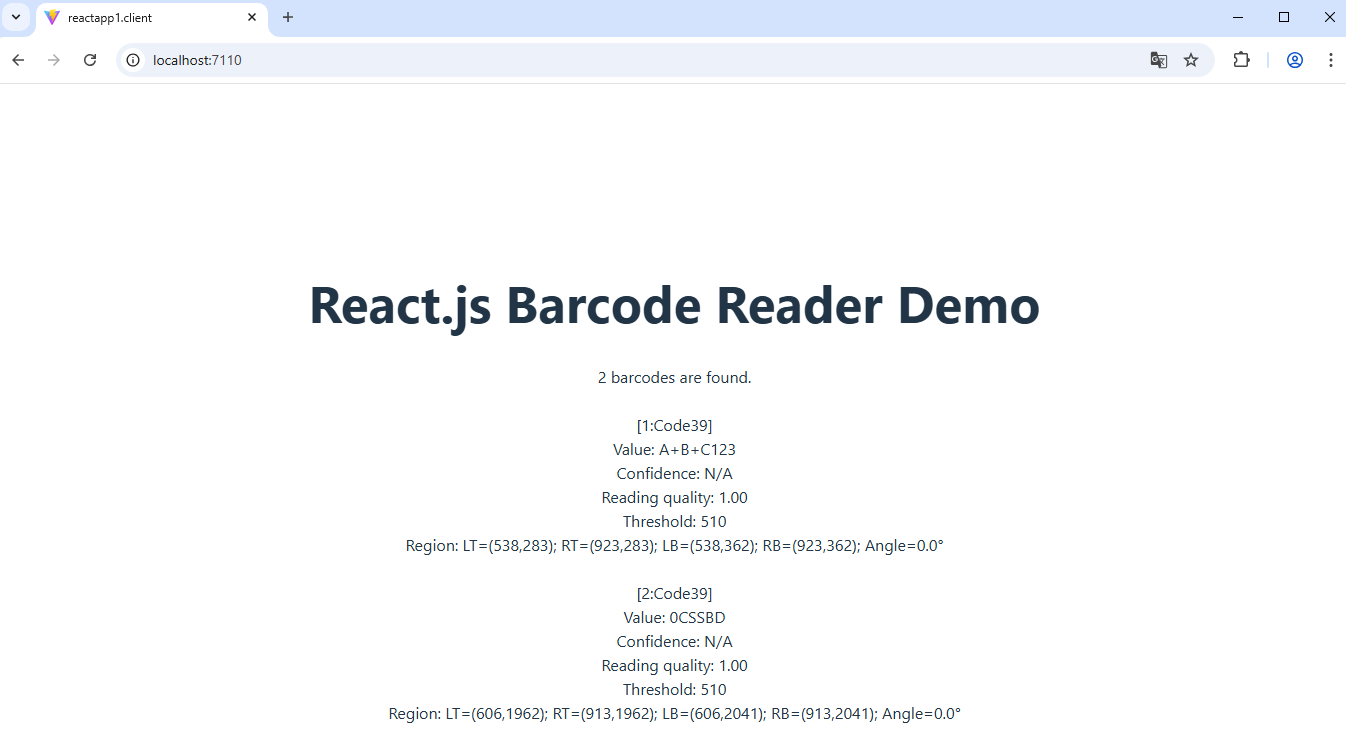
Распознавание штрих-кодов из изображения в приложении "React.js и ASP.NET Core"
В этом разделе
Данное руководство демонстрирует, как создать пустое приложение "React.js и ASP.NET Core" в Visual Studio .NET 2026 и распознать штрих-коды в изображении в приложении "React.js и ASP.NET Core".
Вот шаги, которые необходимо выполнить:
-
Создайте пустое приложение "React.js и ASP.NET Core".
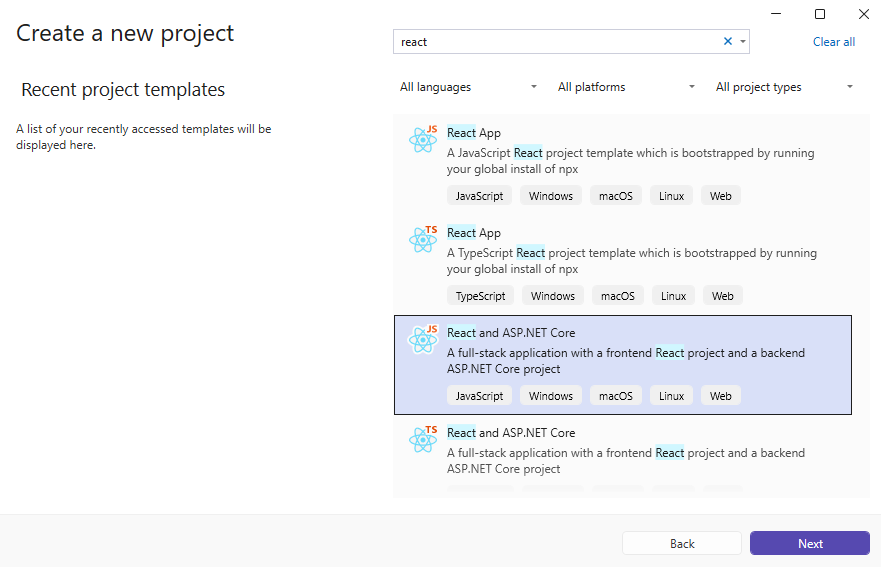
Откройте Visual Studio .NET 2026 и создайте новый проект типа "приложение React.js и ASP.NET Core":
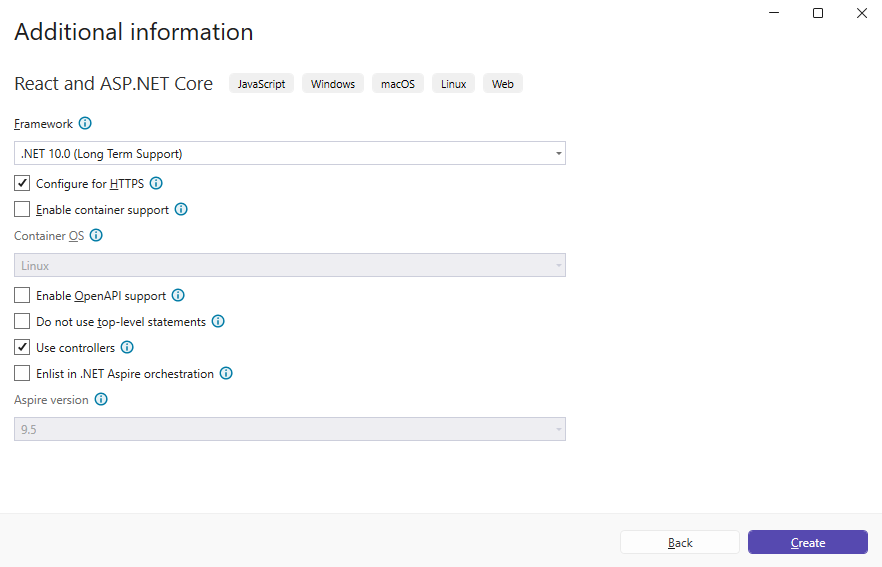
Настройте проект для использования .NET 10.0:
-
Проект "ReactApp1.Server": Добавьте ссылки на nuget-пакеты Vintasoft в приложение ASP.NET Core.
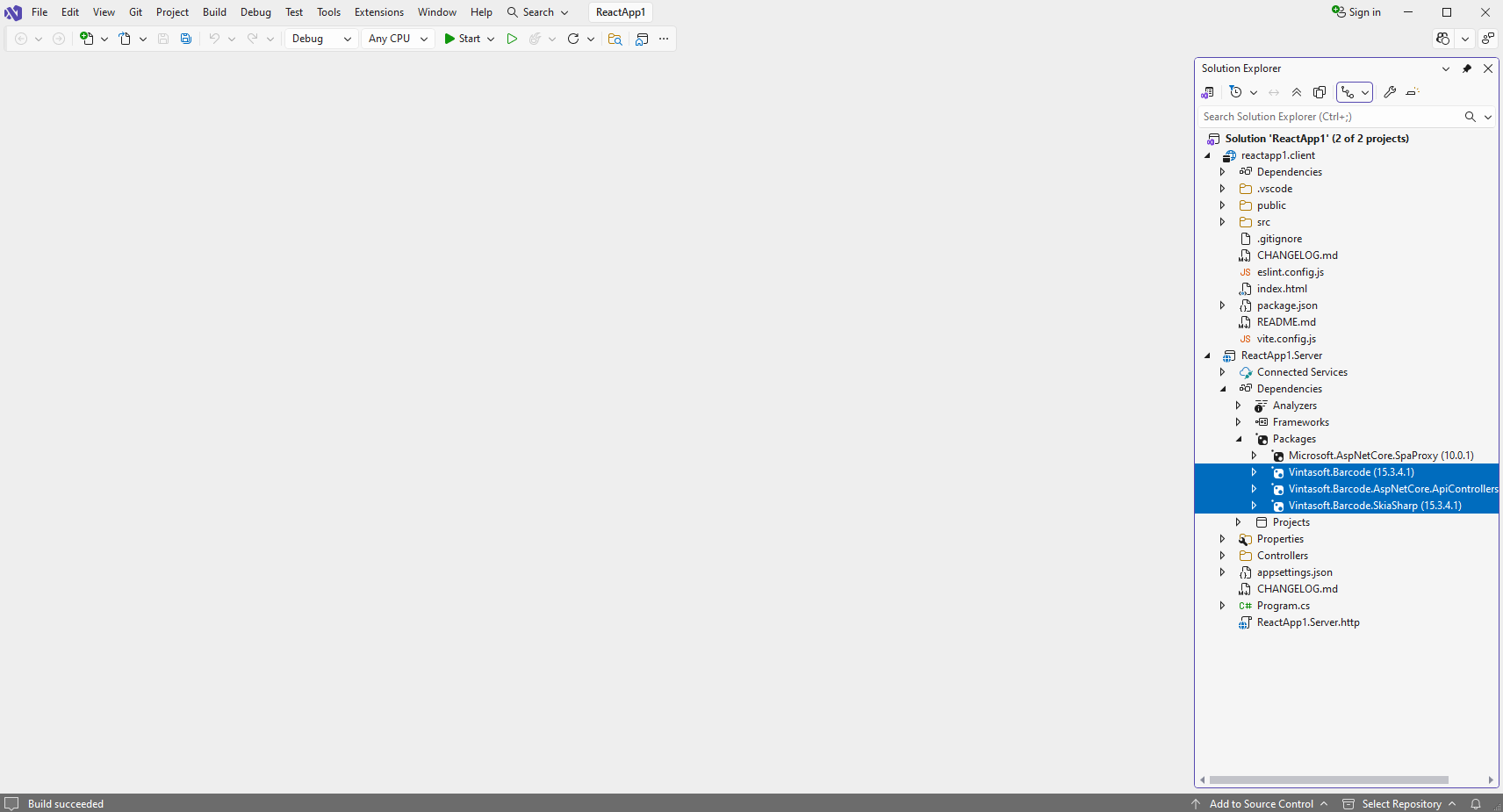
Добавьте ссылки на nuget-пакеты Vintasoft.Barcode , Vintasoft.Barcode.SkiaSharp и Vintasoft.Barcode.AspNetCore.ApiControllers в проект "ReactApp1.Server".
Если вы хотите использовать ИИ для обнаружения областей штрих-кода, добавьте ссылку на пакеты nuget Vintasoft.Barcode.AI.1D , Vintasoft.Barcode.AI.2D , Microsoft.ML.OnnxRuntime v1.23.0 , Microsoft.ML.OnnxRuntime.Managed v1.23.0 в проект ASP.NET Core.
-
Проект "ReactApp1.Server": Добавьте контроллер Web API, который позволяет распознавать штрих-коды в изображении.
-
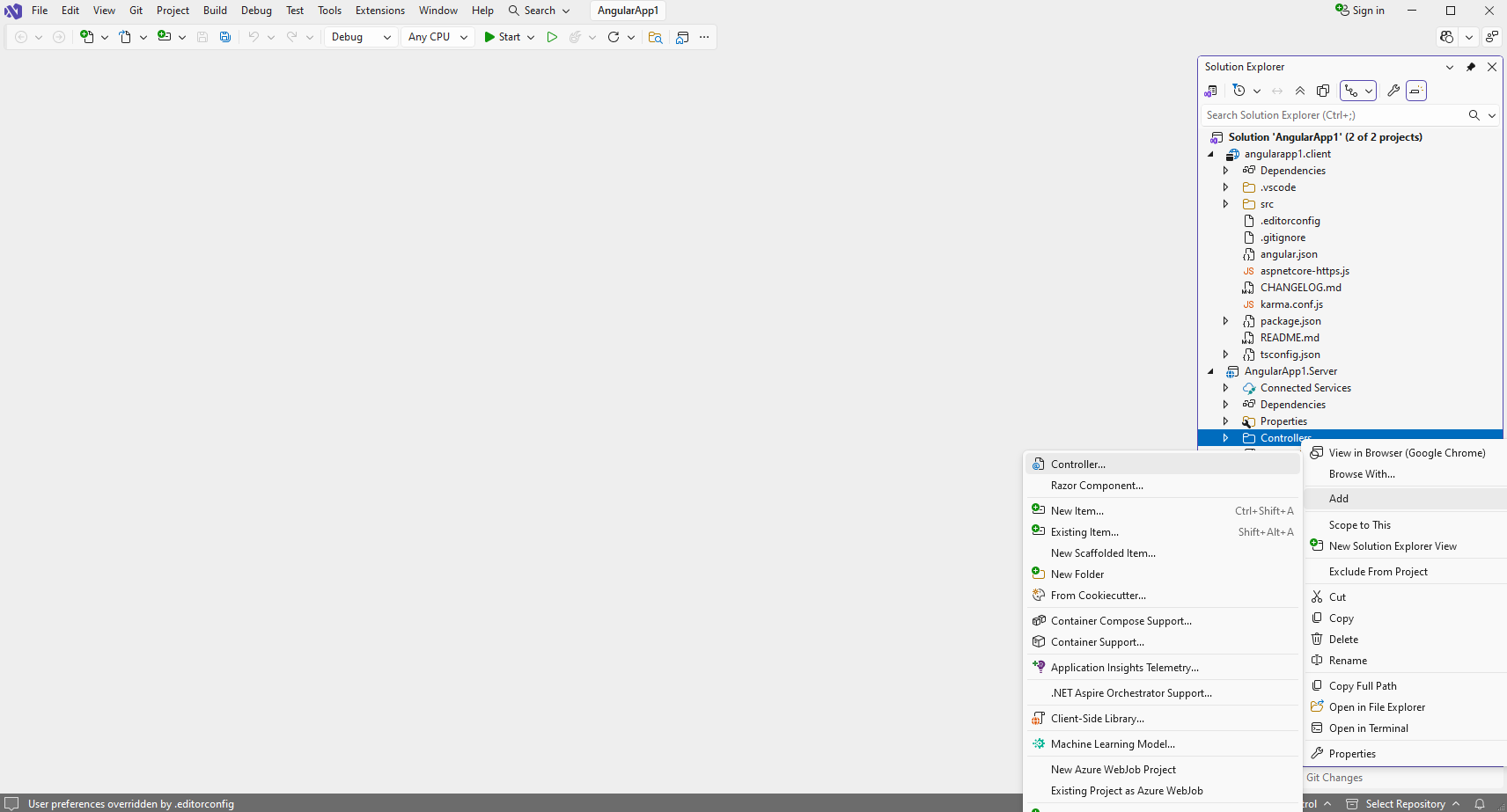
Нажмите правую кнопку мыши на папке "Controllers" и выберите "Add => Controller..." в контекстном меню
-
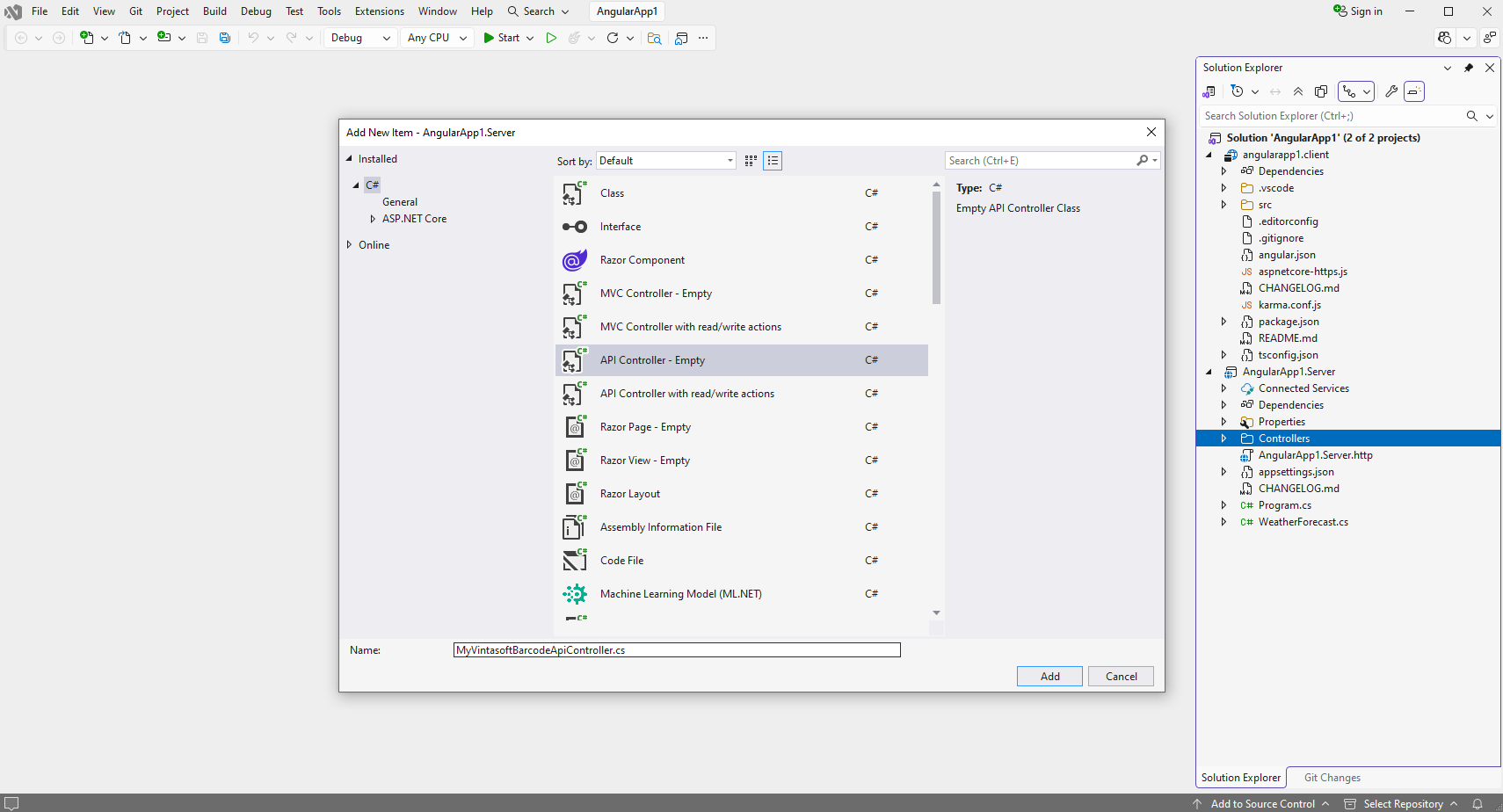
Выберите пустой шаблон API-контроллера, задайте имя контроллера как "MyVintasoftBarcodeApiController" и нажмите кнопку "Добавить".
-
Укажите, что класс MyVintasoftBarcodeApiController является производным от класса Vintasoft.Barcode.AspNetCore.ApiControllers.VintasoftBarcodeApiController.
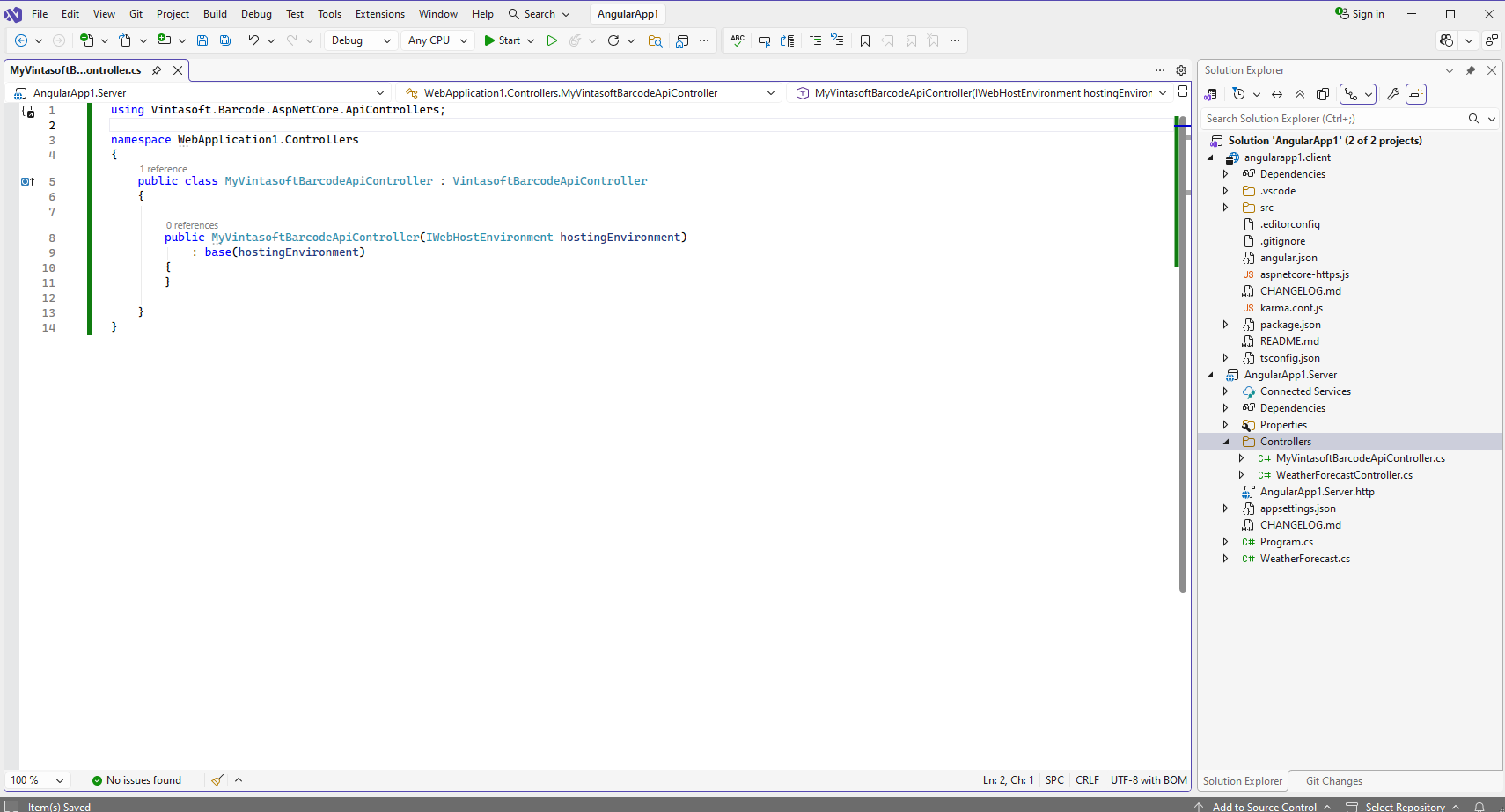
Вот исходный код класса MyVintasoftBarcodeApiController:
-
Нажмите правую кнопку мыши на папке "Controllers" и выберите "Add => Controller..." в контекстном меню
-
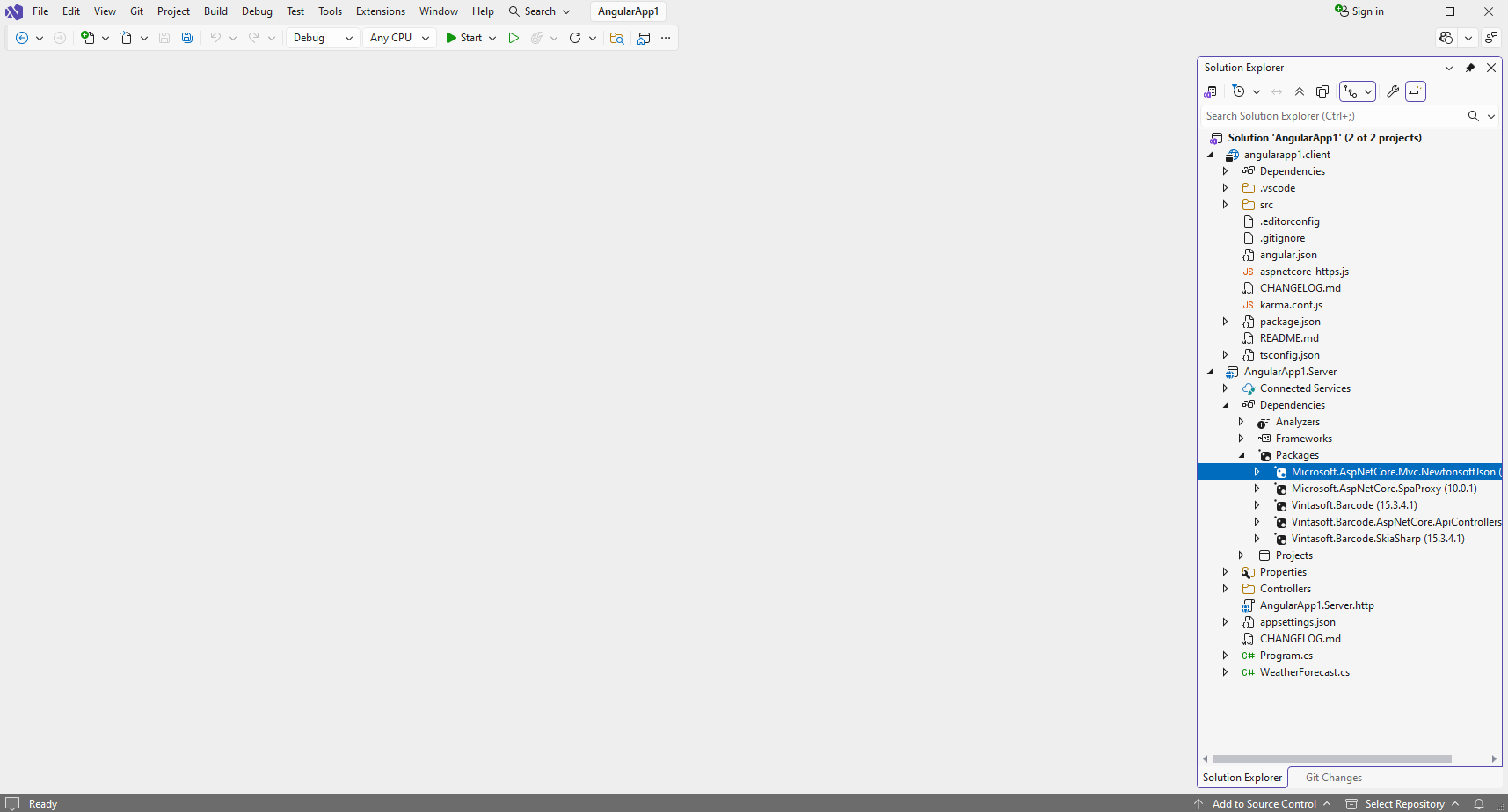
Проект "ReactApp1.Server": Добавьте ссылку на nuget-пакет "Microsoft.AspNetCore.Mvc.NewtonsoftJson" для десериализации результатов распознавания штрих-кодов.
-
Добавить ссылку на nuget-пакет
Microsoft.AspNetCore.Mvc.NewtonsoftJson
в проект "ReactApp1.Server":
-
Откройте файл "Program.cs" и добавьте строку кода "builder.Services.AddControllersWithViews().AddNewtonsoftJson();". Это необходимо для корректной десериализации результатов распознавания штрих-кодов.
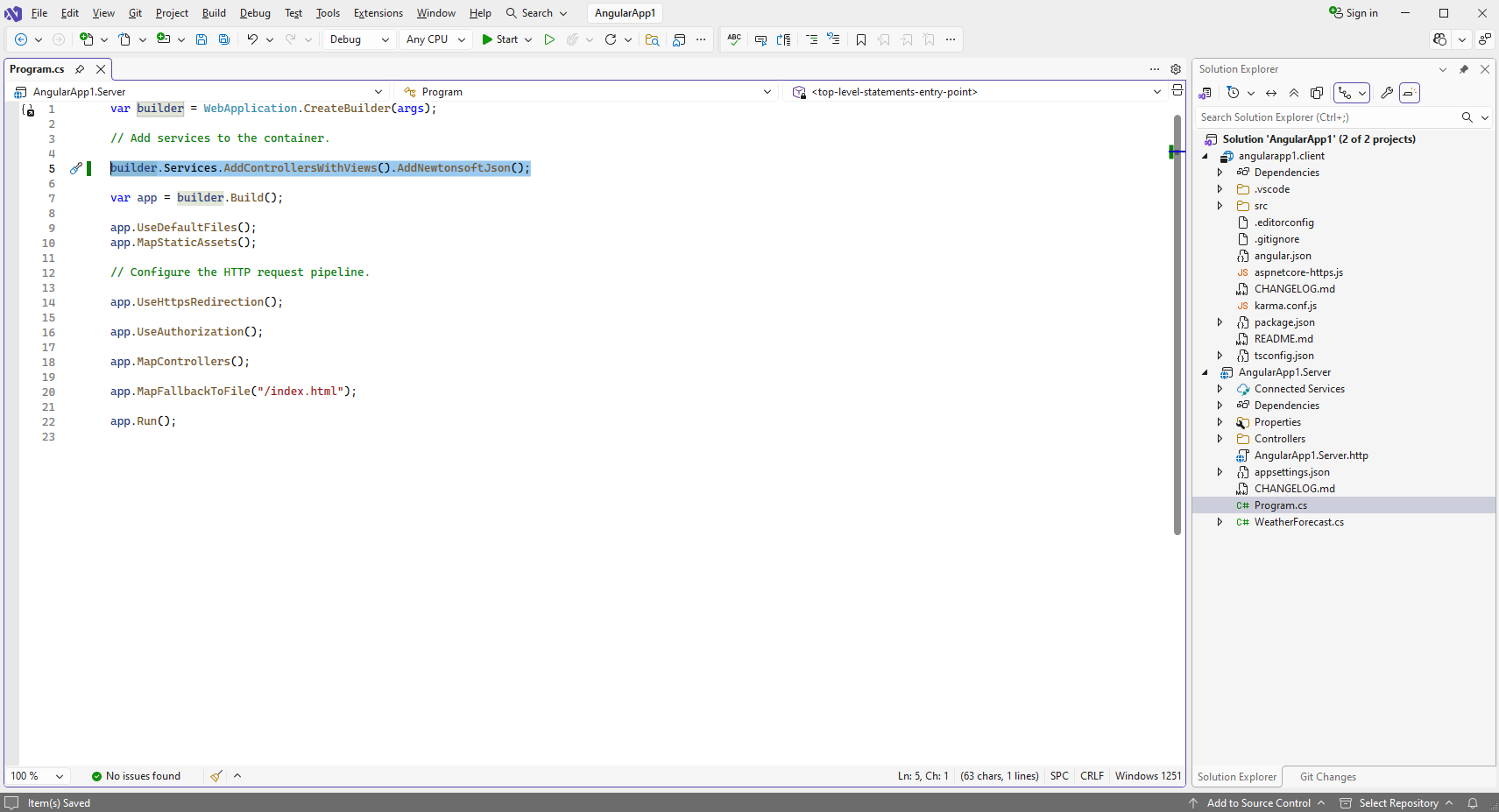
Вот исходный код файла Program.cs:
-
Добавить ссылку на nuget-пакет
Microsoft.AspNetCore.Mvc.NewtonsoftJson
в проект "ReactApp1.Server":
-
Проект "ReactApp1.Server": Укажите файл изображения, содержащего штрих-коды.
Создайте папку "wwwroot\UploadedImageFiles\SessionID" в проекте "ReactApp1.Server" и скопируйте Файл PNG-изображения со штрих-кодами из Github в созданную папку. Мы будем распознавать штрих-коды на этом изображении. -
Проект "ReactApp1.Server": Удалите не нужные файлы.
Удалите файлы "ReactApp1.Server.http", "WeatherForecast.cs" и "Controllers\WeatherForecastController.cs" в проекте "ReactApp1.Server" - контроллер Web API WeatherForecast в этом примере не нужен. Проект "reactapp1.client": Скомпилируйте решение для восстановления зависимостей TypeScript в проекте "reactapp1.client".
-
Проект "reactapp1.client": Добавьте файлы JavaScript в приложение ASP.NET Core.
-
Скопируйте
JavaScript-файл "Vintasoft.Shared.js" с Github
в папку "public" в проекте "reactapp1.client".
Скопируйте Файл JavaScript "Vintasoft.Barcode.js" с Github в папку "public" в проекте "reactapp1.client".
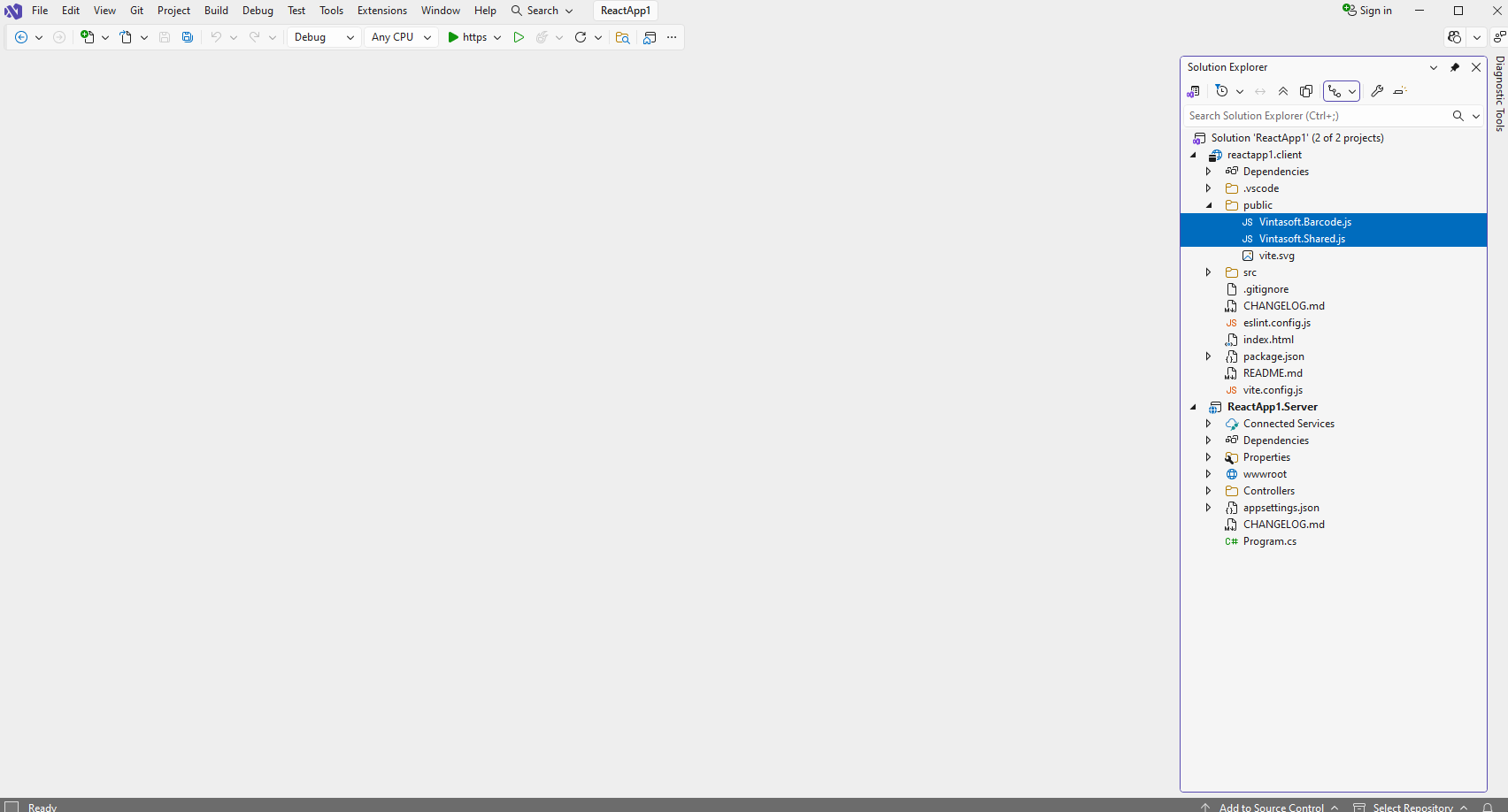
-
Добавьте ссылки на файлы JavaScript Vintasoft в заголовок файла "index.html" в проекте "reactapp1.client":
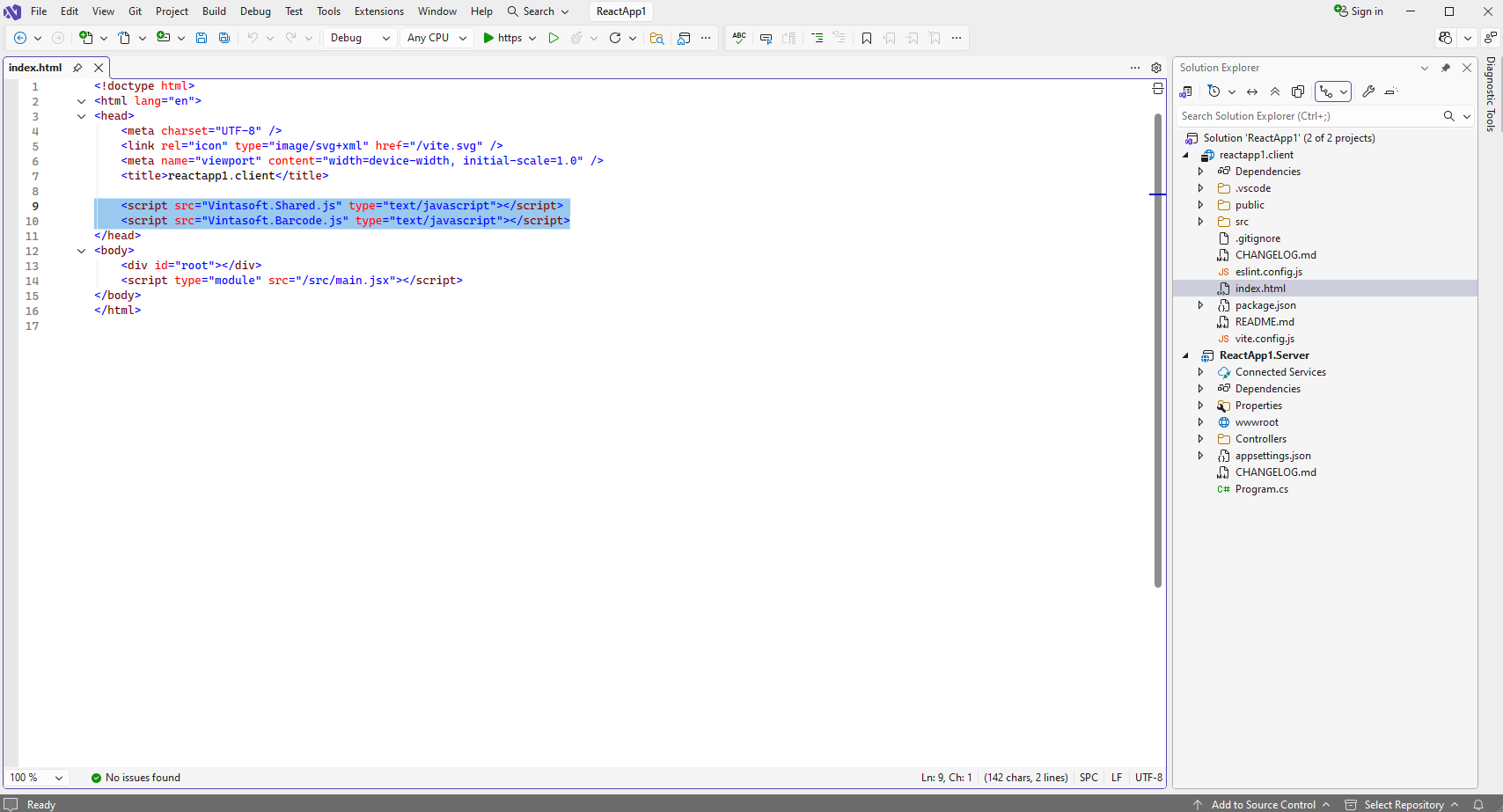
-
Скопируйте
JavaScript-файл "Vintasoft.Shared.js" с Github
в папку "public" в проекте "reactapp1.client".
-
Проект "reactapp1.client": Создайте компонент React.js, который распознает штрих-коды в изображении и отображает результат распознавания штрих-кодов.
-
Откройте файл "src\App.jsx" в проекте "reactapp1.client", очистите файл, добавьте код JavaScript в файл "App.jsx" (функция "App" генерирует разметку страницы и запускает распознавание штрих-кодов, функция "__recognizeBarcodes" распознает штрих-коды в изображении):
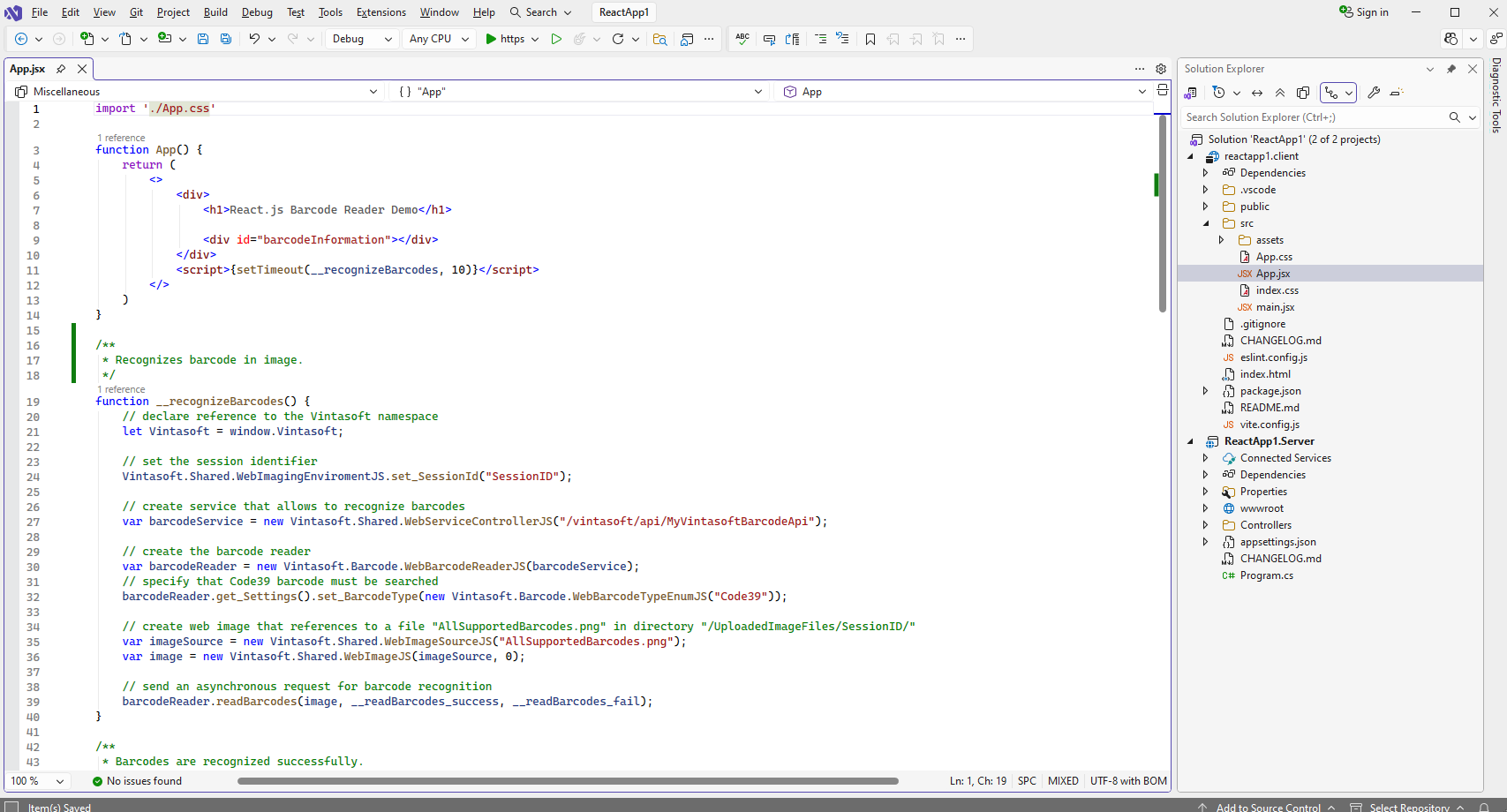
Вот код JavaScript из файла App.jsx:
-
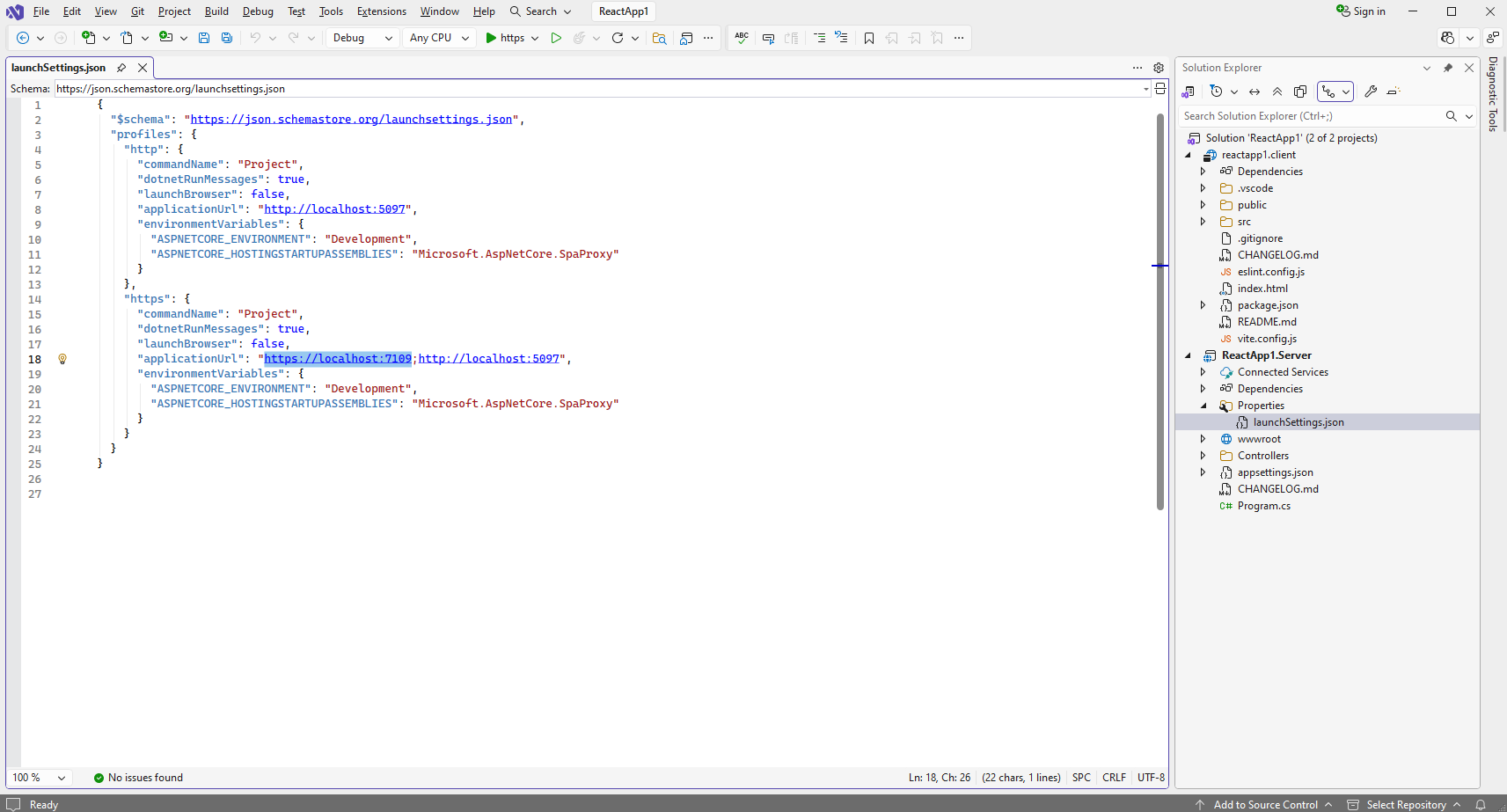
Откройте файл "Properties\launchSettings.json" в проекте "ReactApp1.Server" и получите URL веб-сервиса из параметра "applicationUrl" раздела "profiles\https" - в этом примере URL - "https://localhost:7109":
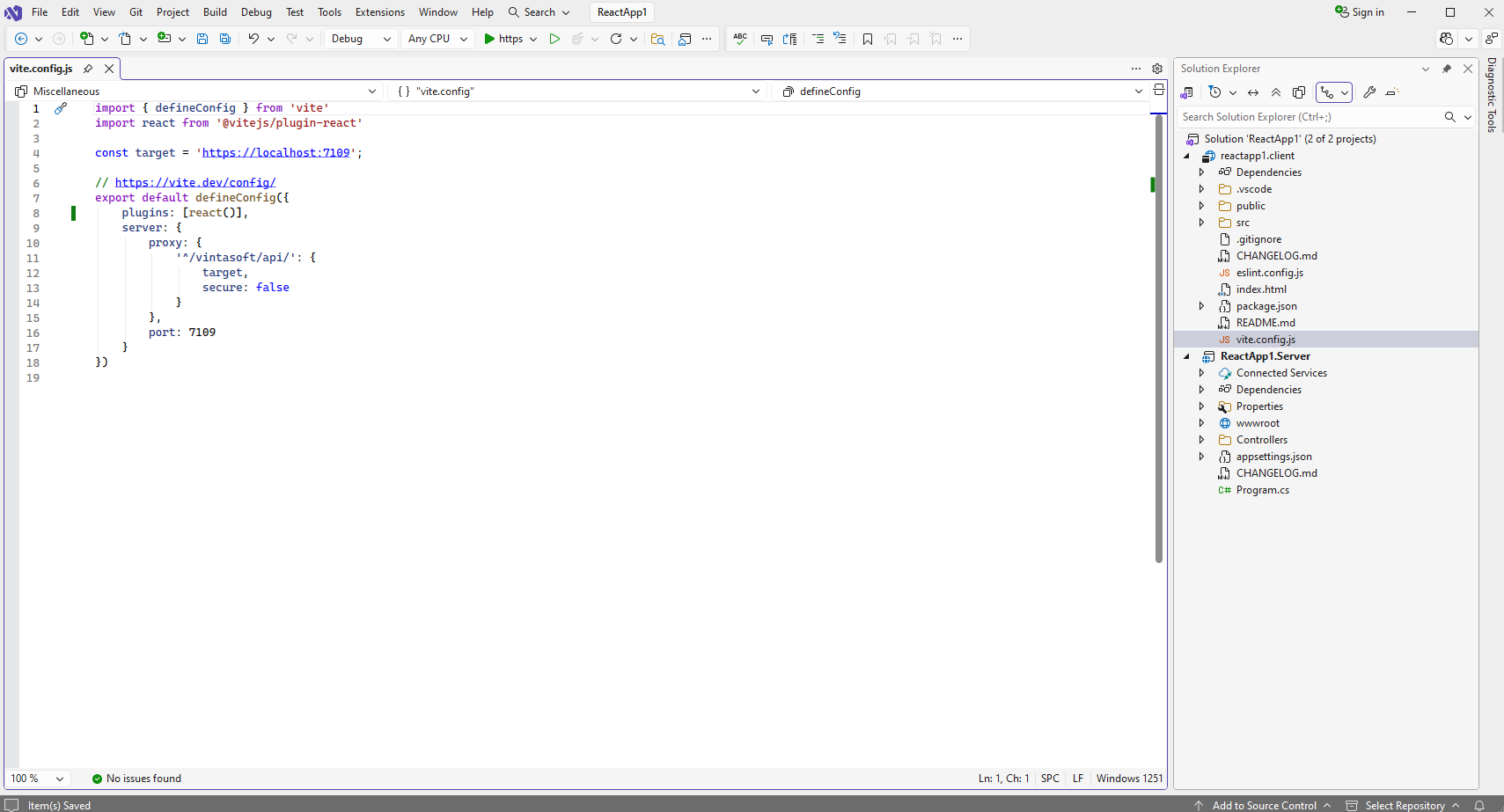
Откройте файл "vite.config.js" в проекте "reactapp1.client" и укажите, что приложение React.js может иметь доступ к веб-сервису в проекте "ReactApp1.Server" (добавьте раздел "server" в объект "defineConfig"):
-
Откройте файл "src\App.jsx" в проекте "reactapp1.client", очистите файл, добавьте код JavaScript в файл "App.jsx" (функция "App" генерирует разметку страницы и запускает распознавание штрих-кодов, функция "__recognizeBarcodes" распознает штрих-коды в изображении):
-
Запустите приложение "React.js with ASP.NET Core" и посмотрите результат.